
Common Reserve Caps, Release Dates & Helpful Info - Spring 2027
View a list of reserve caps commonly used on class sections for Spring 2027.
Reserve Cap Description Chart Spring 2027 10.01.2026.pdf
The list for Spring 2027 includes:
- which students have access to seats with that reserve cap
- if the cap lifts at a certain time and when
What is a reserve capacity?
A reserve capacity (commonly called a reserve cap) is a segment of seats that has been held for certain populations of students within a class section. Typically, this means seats are reserved for students in certain majors, minors, certificates, or programs (Honors, CARE, an LLC, etc.).
How to View Reserve Caps
Reserve caps are tied to specific sections of a course. Not all sections have reserve caps.
If a course section has a reserve cap, it will be noted in the details for the course section. The reserve cap will include a code (name), the number of seats reserved, and the number of those reserved seats left.
Viewing Reserve Caps in Stellic
Whether you select sections manually or use the Auto Generate feature to build your schedule in Stellic, you should always review the section details to see if there are reserve caps on any class sections you are considering.
- View the Max Enrollment field to make sure there are still seats available in that section. The number of seats still available will be listed in green beside the total cap for the course. If there are zero seats, the section is full, and you will need to find another section or class.
- View the Enrollment Notes to see if the seats in the section are reserved for students in specific major(s) or other special programs (reserve capped). If there is an Enrollment Note and you are not participating in the programs indicated by the note, you will need to select an alternate section or class.
a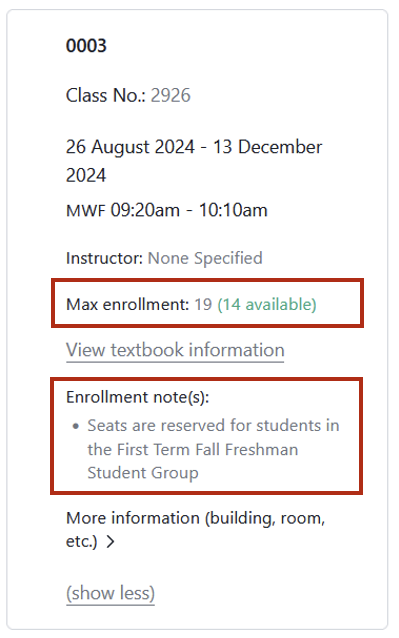
Viewing Reserve Caps in Class Search
Search for a course to view the sections available. Click the hyperlinked class section you are interested to view Class Details.
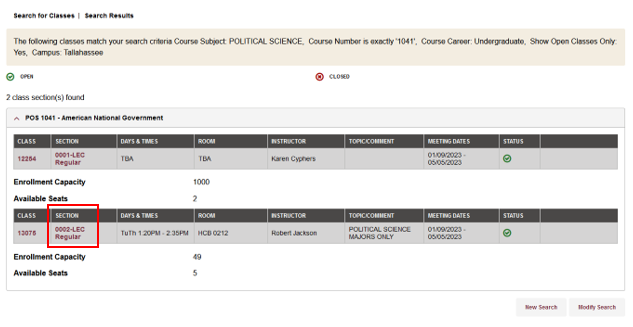
On the Class Details page, scroll down to the Class Availability section to view the number of seats available in the section.
Check for a Reserve Capacity note. This means the section may have seats reserved for students in a certain population or program, and only students in those programs will be eligible to register for these sections.
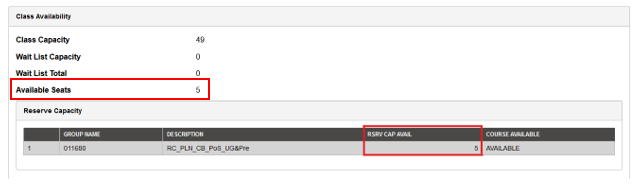
In this example, the 5 seats are available in this section and all five seats are reserved for majors only.
Tip: In some cases, only some seats in the section are reserved. Always compare the number of seats reserved to the total number of available seats in the section. If there are more seats open than the number reserved, that means you likely have access to those open seats!
Reserve Caps That May Lift
In some sections, the reserved seats that are not filled are typically opened to any student (though pre-req checks still apply) at a later date in the registration process. This is often referred to as the date that a reserve cap “lifts”. Some examples:
- New Student Orientation (beginning of fall drop/add)
- First Term Fall Freshmen / FIG (during July open registration for fall term)
- BSC2010 & BSC2010L
- BSC2011 & BSC2011L
Reserve Caps That Don’t Lift
Some sections will always be reserved for certain populations, and the open seats will not become available to the larger student population. Some examples:
-
Honors
- CARE
- A specific LLC (Living Learning Community)
- Overseas Program (London FA, Florence FA, Valencia FA, Republic of Panama FA)
- Many major-specific courses
- Most sections designed for distance learning students (DL is usually in the reserve cap name)
Reserve Cap Error Message & Next Steps
If you try to enroll in a class section with a reserve cap and you are ineligible for the open seats, you will receive this error message:
You are unable to enroll in this class at this time. Available seats are reserved and you do not meet the reserve capacity requirements.
Steps to try if you receive this error message:
- Try to find an alternate section of the class in Stellic that is not reserved:
- In the Courses panel of the Scheduler, click on the class to expand the course details.
- Scroll down to review other sections of the class.
- Pay attention to any reserve cap/enrollment notes that may appear on other sections.
- Click on the alternate section that you select and click the Confirm Courses for Registration button to continue with the enrollment process.
- Try to enroll in the course during drop/add.
- Many reserve caps lift at the beginning of drop/add.
- If you are unsure if a reserve cap will lift for drop/add, ask your academic advisor for an alternative course suggestion.