
Student Search
If you are searching for an individual student, you may use either of the search boxes outlined in red to enter the student's name, FSUID, or EMPLID. (Tip: the one on the top right will get you there in fewer clicks.) For broader searches, use the available filters.
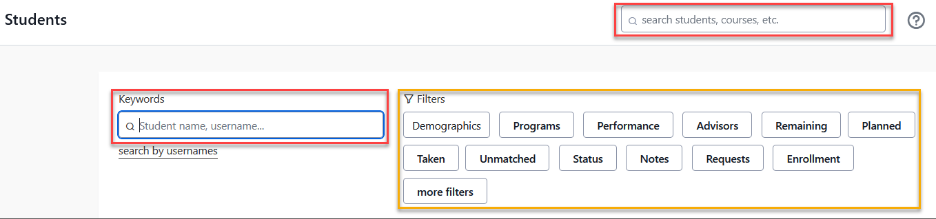

Filters allow you to refine your search based on criteria such as enrollment level, academic program, and outstanding course requirements. For more detailed information on using filters, refer to the Reporting section of this website.
Queries are generated dynamically as you type, eliminating the need to press a button to execute them. If you frequently use specific combinations of filters, we recommend utilizing the "save as" feature for efficiency.
Viewing a Student's Profile
Click on any student from search results, or search by name or username, to open their full profile.
At the top, you'll find basic identifying academic information, such as the program in which the student is enrolled, their campus, when they expect to graduate, and their standing.
Undergraduate Example

Below is an overview of their degree progress. Stellic uses color coding throughout.

Viewing a Student's Audit
The full list of courses and requirements needed to complete their degree plan is known as the "degree audit" or just "audit". It appears underneath the Student Profile, under the "Progress" tab.

You can toggle between "official" and "planned", based on whether you want to account for the student's advance planning.

- Official audit: Officially declared programs and completed/registered courses from the Student Central, FSU's student information system (SIS).
- Planned audit: All programs (official and unofficial) plus completed, registered, and future planned courses.
Use the right-hand drop-down to switch views. The chart below details available options for official and planned audits, including definitions.
| Official Audit | Planned Audit |
|---|---|
| Full Audit | Full Audit |
| Compact Condensed overview |
Compact Condensed overview |
| Remaining Unfulfilled requirements grouped by program |
Unplanned Unfulfilled and unplanned requirements grouped by program |
| Expanded Full audit with details |
Expanded Full audit with details |
| All remaining All outstanding requirements across all programs, accounting for double-counting rules |
Remaining only All outstanding (neither fulfilled nor planned) requirements across all programs, accounting for double-counting rules |
Viewing a Student's Coursework
Selecting the "Courses" tab will navigate you to a student's academic transcript. This section includes all awarded academic credits, encompassing not only traditional courses but also any requirements that require registration, such as dissertation hours.

Information will appear in the following order:
- First, any transfer credit.
- Second, all FSU work, grouped by term in chronological order.
- Lastly, any test credit that has been awarded.
You will see a summary of data for each block (in the case of transfer and test credit) and term.
| Block | Summary Data |
|---|---|
| Transfer Credit | Course count, credits attempted, credits earned |
| FSU Credit (each term has its own block) | Course count, credits attempted, credits earned, term GPA |
| Test Scores | Number of tests |